WS & Company
ERP System Redesign
I helped remodel a manufacturing company's legacy ERP system to improve efficiency and the experience for the people who use it every day. Working directly with end users, I turned their pain points into a clearer, faster interface and streamlined task flows.
Role
UX/UI Designer Intern
Industry
Manufacturing
Tools
Figma
Year
Aug - Dec 2023

Problem
WS & Company ran its daily operations, from orders and fabric to shipping, on a legacy ERP system. Every task leaned on it, but screens were cluttered, pages were slow to refresh, and a single job often meant opening several tabs, a separate application, or a spreadsheet. The goal was to make it faster and easier to use without losing the core functionality the team relied on.

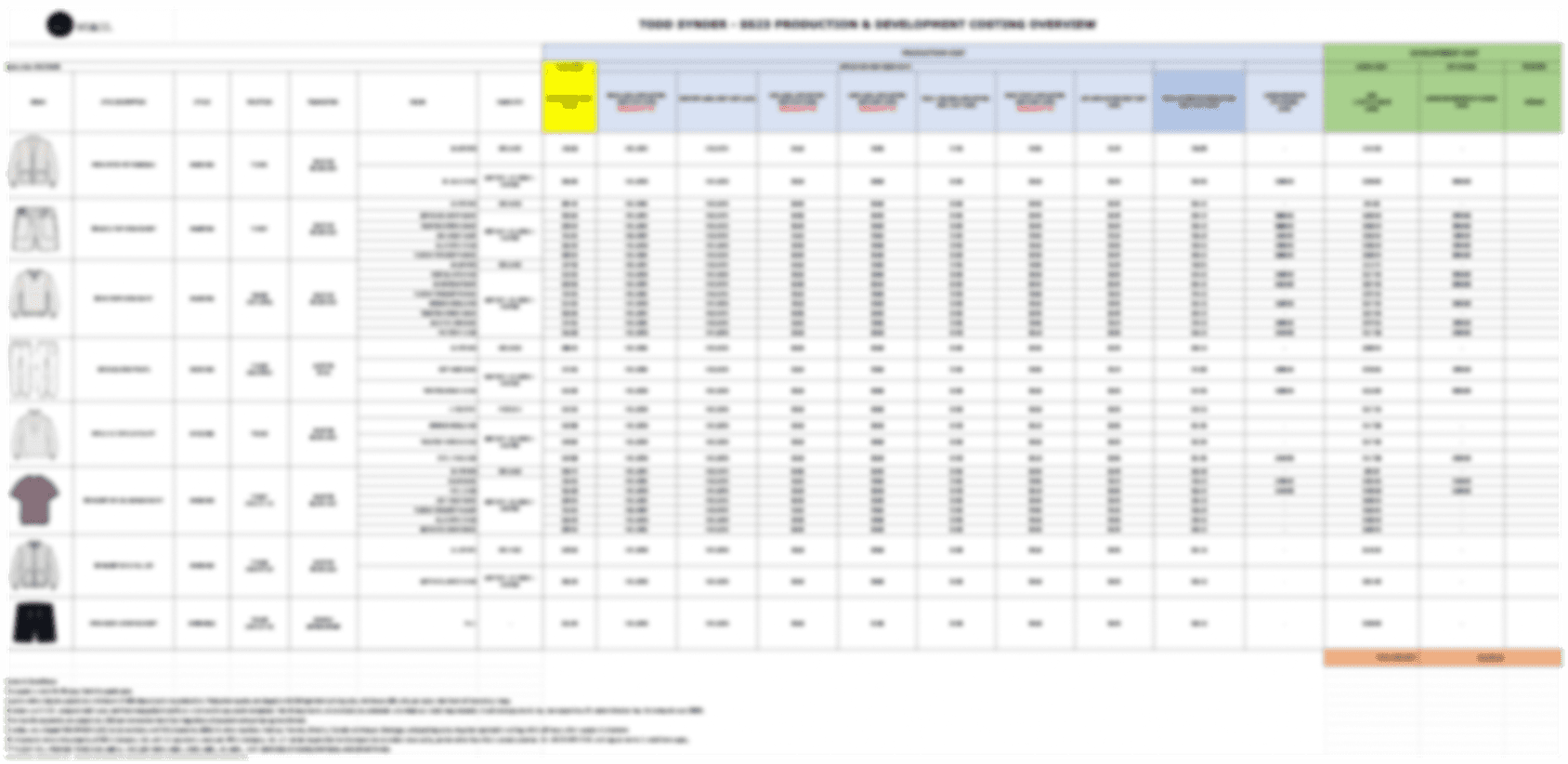
Before
The legacy work order screen. Finishing a task meant leaving it for another application or a separate spreadsheet.
Research
The office team had worked in the legacy system for years, so any change had to respect how they already worked. I interviewed them to learn who they are and how they work. Four factors shaped every decision: age group and experience, English proficiency, comfort with learning new software, and a preference for visual or written content.
What's Needed
Their feedback pointed to four priorities for the redesign: a user-friendly interface, visual communication, cross-device compatibility, and data visibility.
Less redundancy
Finish a task in one place, without re-entering data or jumping between tabs and applications.
Real-time data
Accurate numbers that update across every department as changes happen.
Easy to learn
An interface familiar enough to pick up quickly, whatever someone’s comfort with software.
Access anywhere
Reach the system from different locations and devices.
Solution
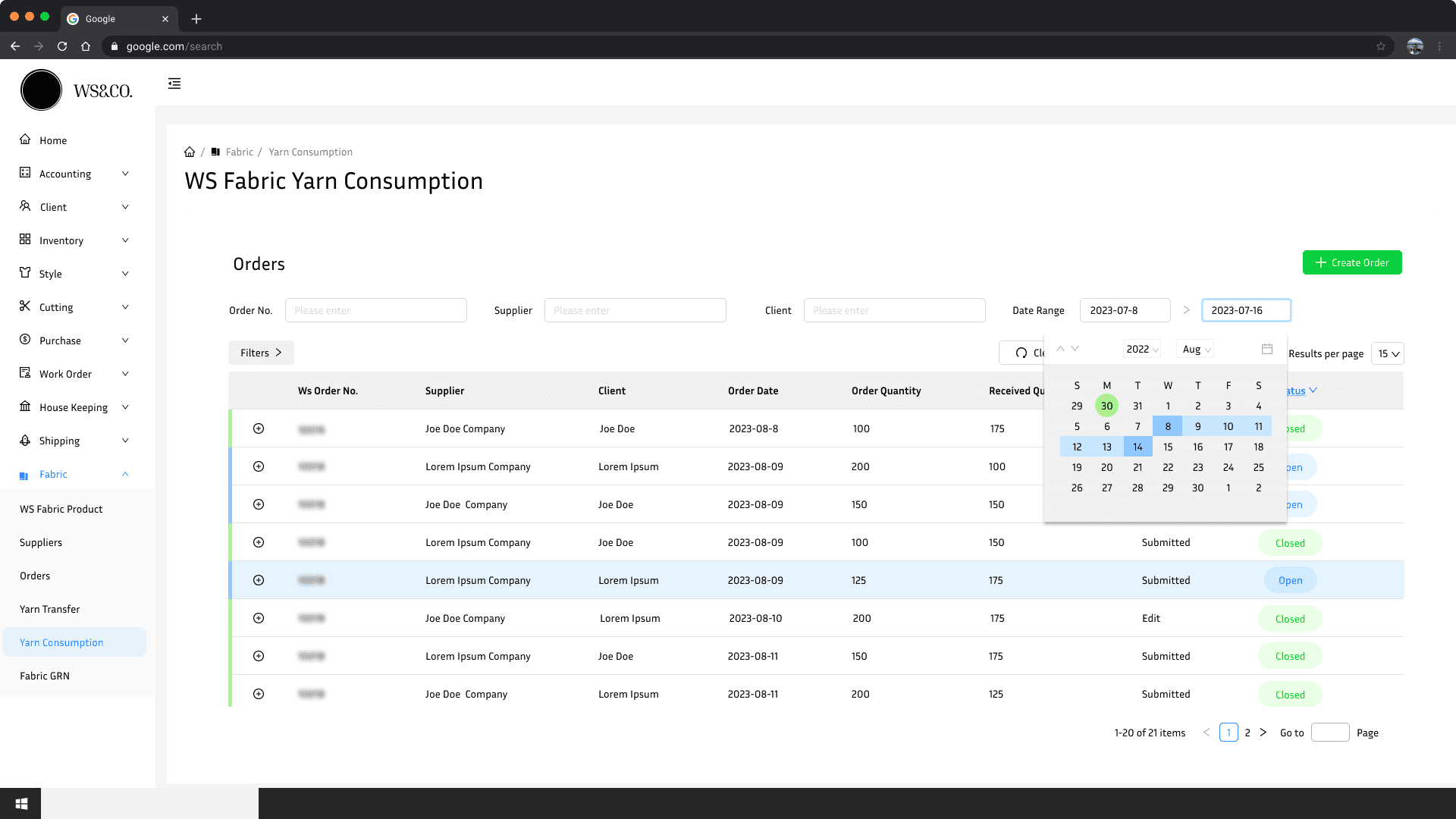
The redesign keeps everything the team relied on and removes the friction they described. Layouts are aligned and easy to scan, related actions stay on the same screen, and data is shown visually where it helps. Some screens are blurred for confidentiality.
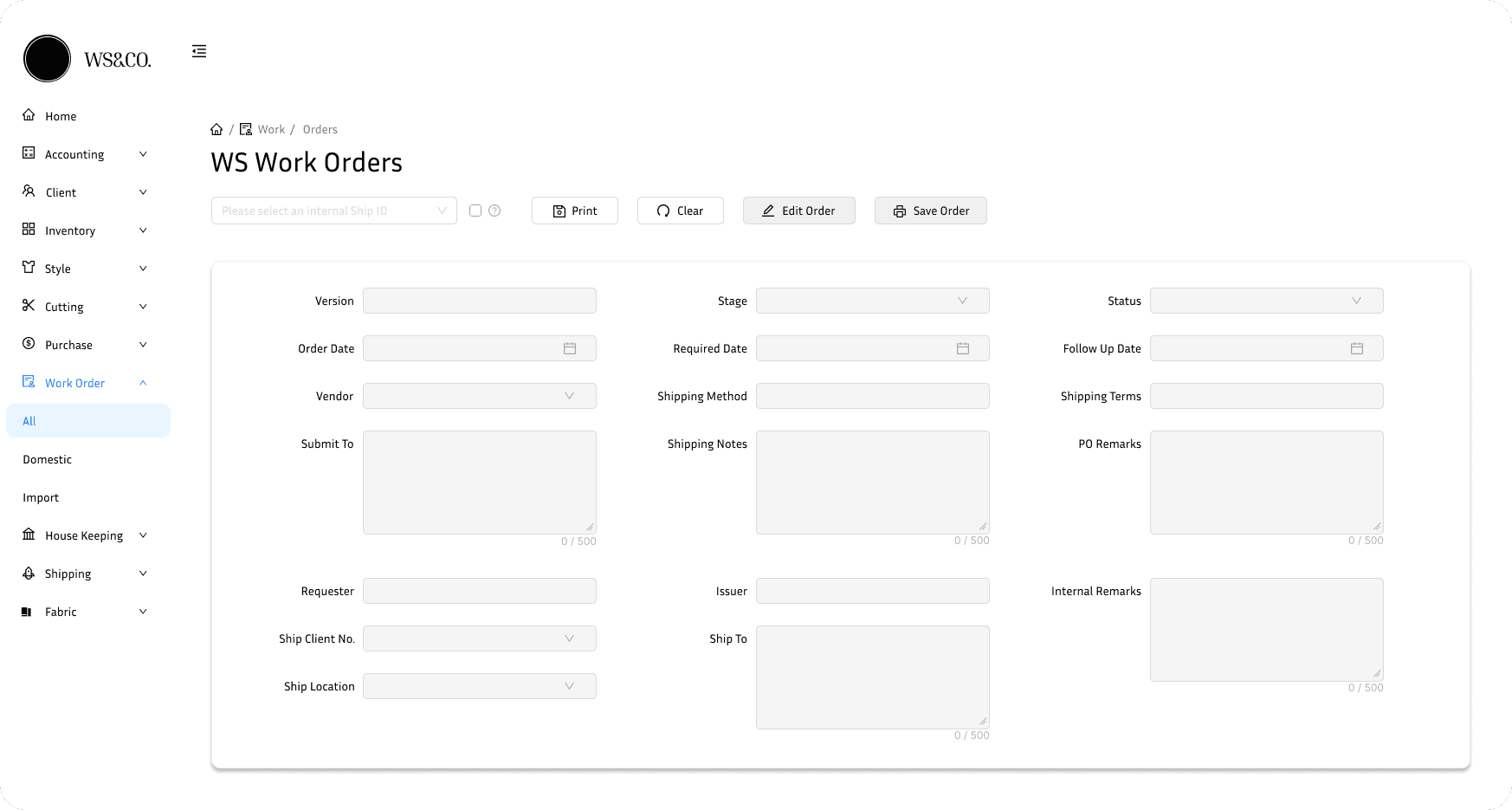
1. A cleaner layout
Fields are aligned and grouped, so information is easy to find at a glance instead of buried in a cluttered form.
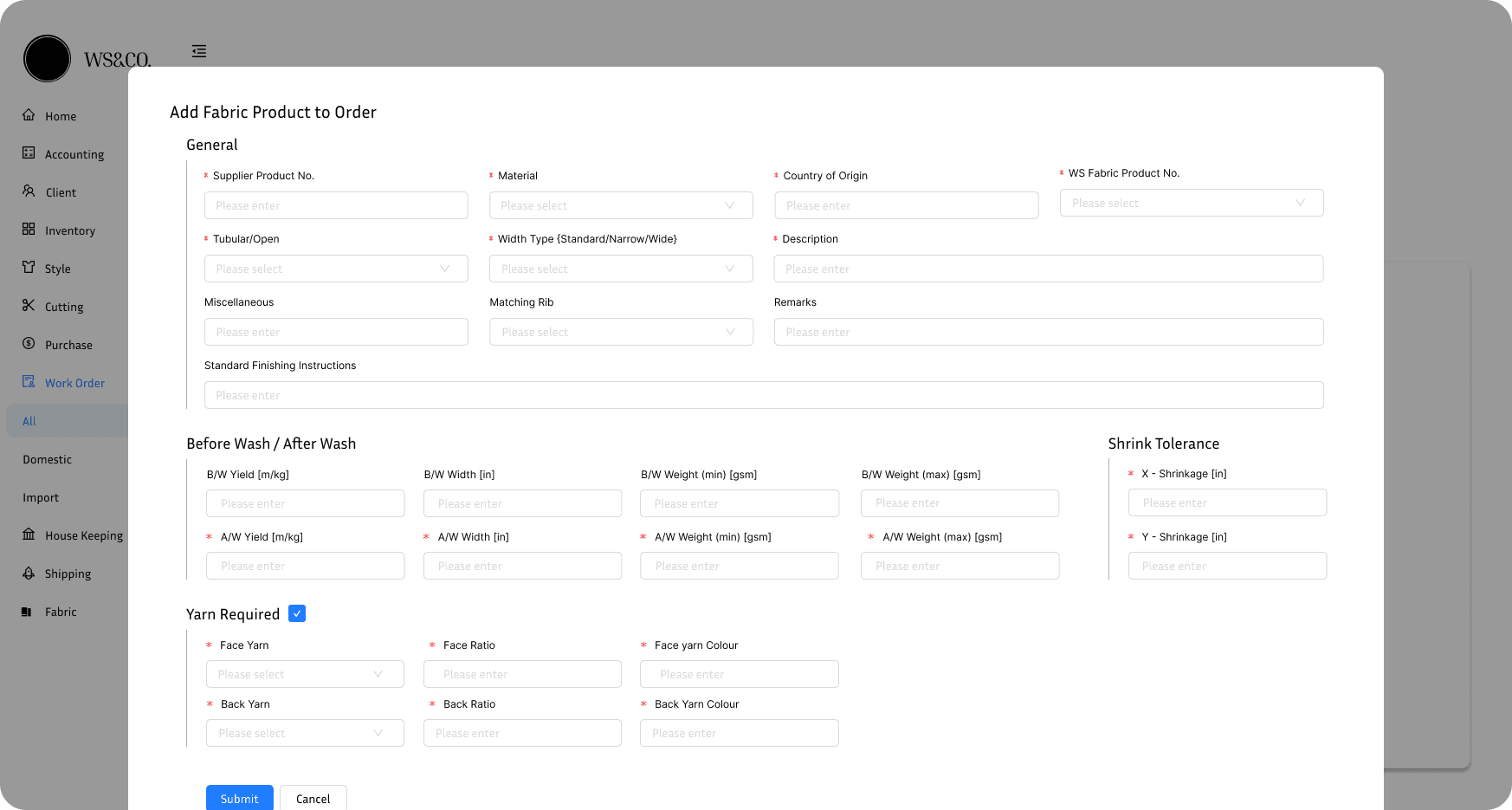
2. Pop-ups instead of new apps
Users add or browse data in a pop-up without leaving the page, so a single task no longer means opening another application.
3. A visual dashboard
Order activity and status turn into charts that are easy to read and update in real time.
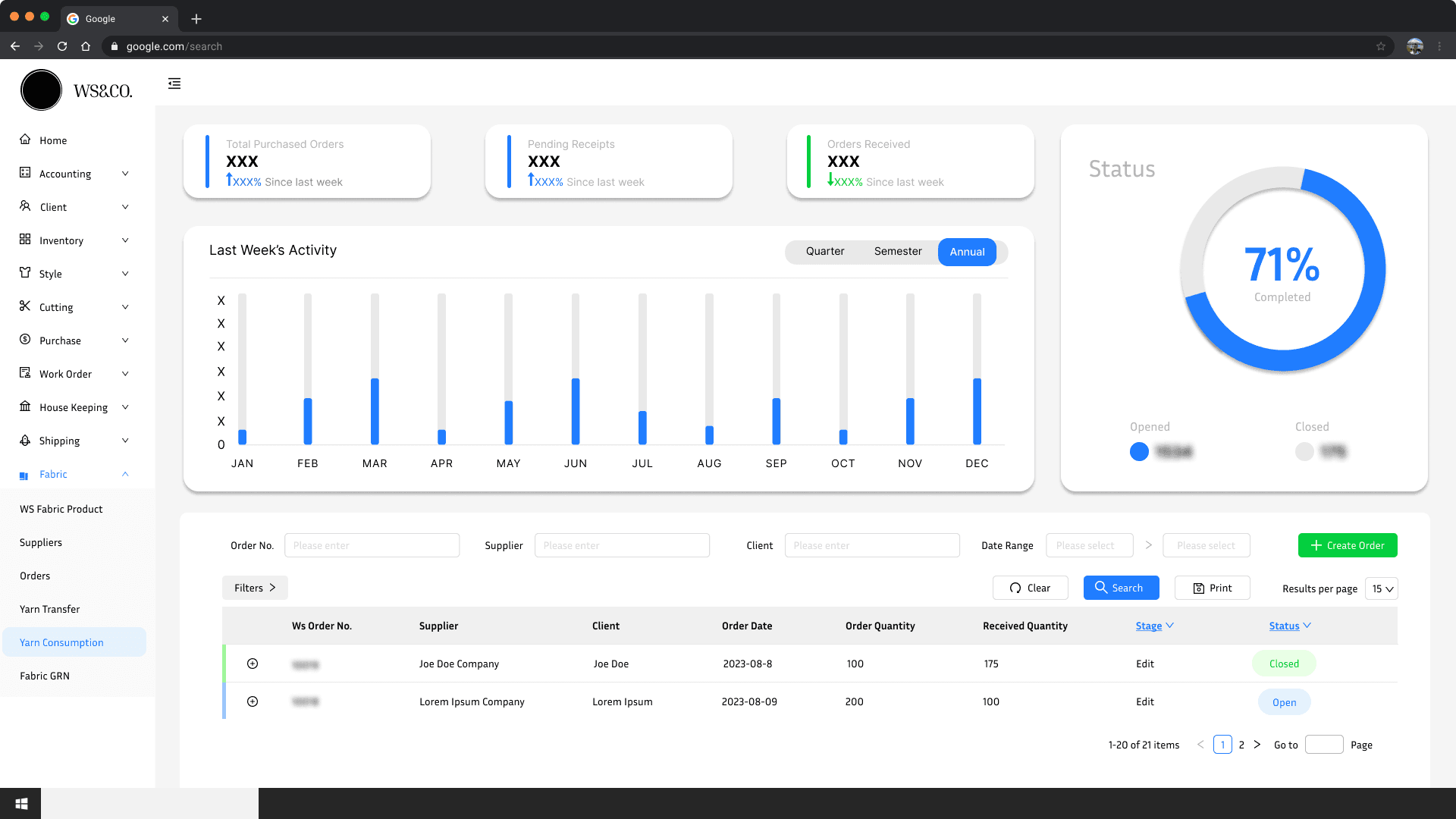
4. Organized tables
Rows follow a clear linear order, color-coded tags show whether an item is open or closed, and the selected row is easy to spot.
The details
Small additions answered specific frustrations and made everyday tasks faster.
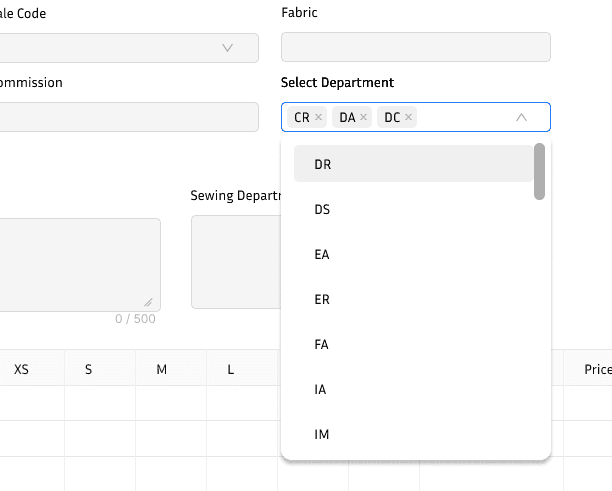
1. Suggested filters
Recommended options in the search fields remove manual searching.
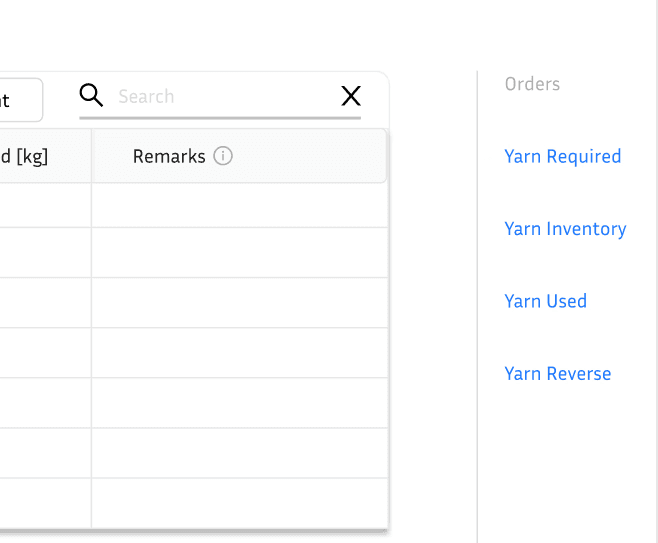
2. Quick navigation
Links jump straight to specific sections of a page.
3. Filter by date, stage, and status
Results narrow by date range, stage, and status, with a set number of results per page.
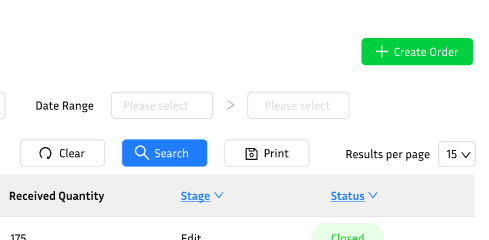
4. Shortcut buttons
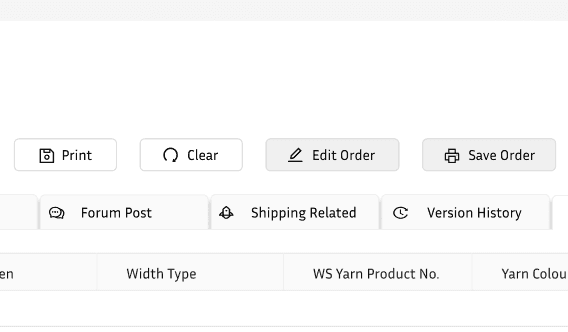
Common actions like print, clear, edit, and save sit on every page, on any device.
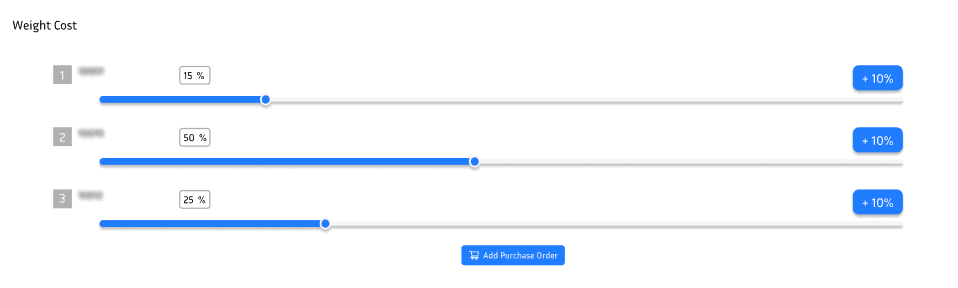
5. Visual weight cost
Horizontal sliders show weight cost from 1 to 3 at a glance.
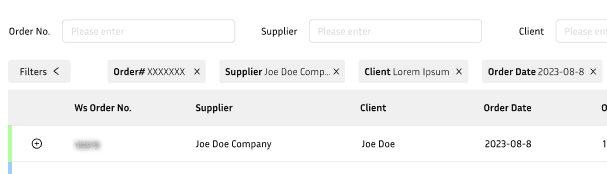
6. Removable filters
Orders filter by order number, supplier, and client, and each filter can be cleared mid-search.
Reflection
I learned that age, language, and how someone prefers to take in information all shaped what a usable interface looked like for this team. This was a good first experience design opportunity